

AI integration in Gmail saves me hours of work
It allows you to summarize conversations, write or reply very quickly.
Here's how to use and access it if you also use Gmail on a daily basis:
It allows you to summarize conversations, write or reply very quickly.
Here's how to use and access it if you also use Gmail on a daily basis:

1. Access Gemini and summarize
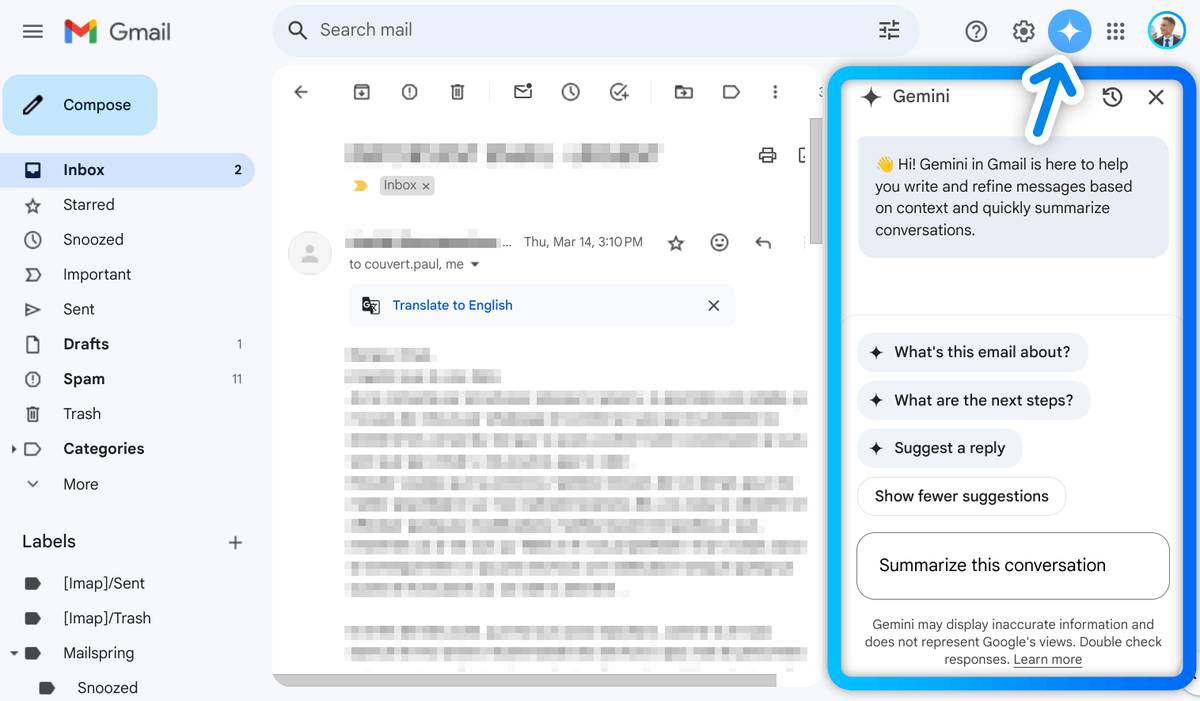
- Open Gmail and click on the "Ask Gemini" icon in the top right-hand corner
- You can access it at any time - either in your mail list or in a conversation
(If you don't see it, take a look at the end of this thread to find out how to activate it).
- Click on a suggestion or write a prompt to ask Gemini to summarize your conversation
- Open Gmail and click on the "Ask Gemini" icon in the top right-hand corner
- You can access it at any time - either in your mail list or in a conversation
(If you don't see it, take a look at the end of this thread to find out how to activate it).
- Click on a suggestion or write a prompt to ask Gemini to summarize your conversation
2. Check the source
To ensure the reliability of the summary, you can double-check the source:
- At the bottom of the summary, select "Sources"
- Then click on the e-mail mentioned so that Gemini can display it for you to read
To ensure the reliability of the summary, you can double-check the source:
- At the bottom of the summary, select "Sources"
- Then click on the e-mail mentioned so that Gemini can display it for you to read

3. Reply with "Help me write"
Let's move on to what literally saves me several hours a month:
- Click on "Reply" to any e-mail
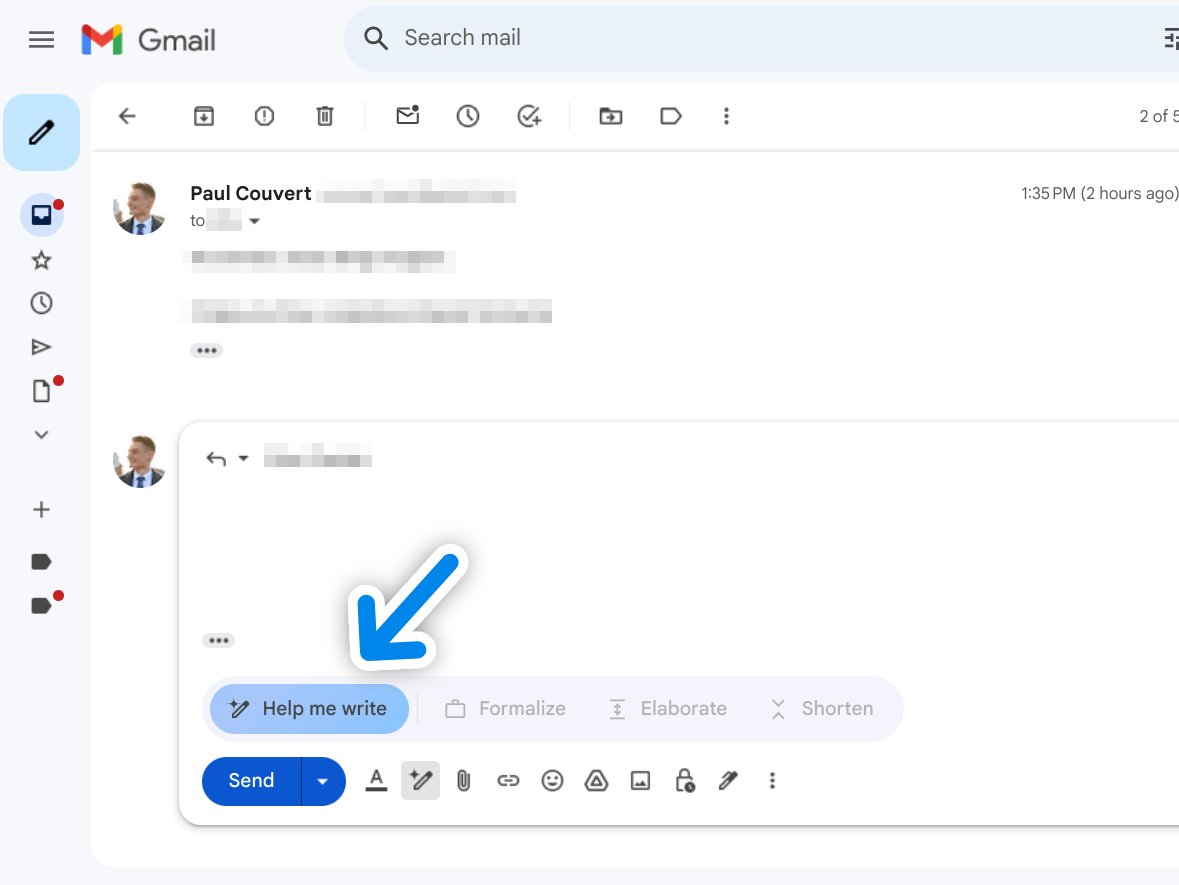
- A blue "Help me write" button appears at the bottom of the text field
Again, if you don't see it, feel free to have a look at the bottom of the thread.
Let's move on to what literally saves me several hours a month:
- Click on "Reply" to any e-mail
- A blue "Help me write" button appears at the bottom of the text field
Again, if you don't see it, feel free to have a look at the bottom of the thread.
Describe your answer
- Summarize in a few words what you want to say in your reply
E.g.: "tell him we can postpone the meeting to a time that suits him better"
- Then click on "Create"
- Gemini will write you a well-written reply, taking into account the conversation you've had with your recipient
All that's left is to insert the reply before sending it.
- Summarize in a few words what you want to say in your reply
E.g.: "tell him we can postpone the meeting to a time that suits him better"
- Then click on "Create"
- Gemini will write you a well-written reply, taking into account the conversation you've had with your recipient
All that's left is to insert the reply before sending it.

Refine your message
- After generation, you can ask Gemini to modify the response
- Click on the "Refine" button to display the options
- You can choose between "Formalize", "Elaborate", and "Shorten" to modify it in one click
- After generation, you can ask Gemini to modify the response
- Click on the "Refine" button to display the options
- You can choose between "Formalize", "Elaborate", and "Shorten" to modify it in one click

4. Writing a message with AI
"Help me write" also works for writing a mail from scratch:
- Click on Gmail's "Compose" button and enter your recipient and subject as usual
- Again, the button appears and works in the same way as for a reply
The difference is, of course, that Gemini doesn't take a conversation into account as a context, because it doesn't yet exist.
"Help me write" also works for writing a mail from scratch:
- Click on Gmail's "Compose" button and enter your recipient and subject as usual
- Again, the button appears and works in the same way as for a reply
The difference is, of course, that Gemini doesn't take a conversation into account as a context, because it doesn't yet exist.

Accessing Gemini in Gmail:
You have 2 options for accessing these features:
- Be a Google Workspace Labs user (available in 170+ countries): workspace .google .com/labs-sign-up
- Or use a Google One AI Premium subscription:
it gives you access to Gemini Advanced, "Help you write" in Gmail and Docs, and much more.
Note that the 2 options are compatible with each other, as Google One AI Premium does not yet offer the possibility of summarizing a conversation.
You have 2 options for accessing these features:
- Be a Google Workspace Labs user (available in 170+ countries): workspace .google .com/labs-sign-up
- Or use a Google One AI Premium subscription:
it gives you access to Gemini Advanced, "Help you write" in Gmail and Docs, and much more.
Note that the 2 options are compatible with each other, as Google One AI Premium does not yet offer the possibility of summarizing a conversation.
I hope it'll be as useful to you as it is to me if you have a lot of e-mails to answer every day!
By the way, I send out one AI tutorial or guide a week in my newsletter.
Check out my bio if you'd like to receive it for free!
By the way, I send out one AI tutorial or guide a week in my newsletter.
Check out my bio if you'd like to receive it for free!
جاري تحميل الاقتراحات...